How to Compare Two Excel Files and Find Changed or Missing Records
Compare two Excel reports by ID to find added, missing, and changed transactions. Includes sample files, practical formulas, and a reconciliation of the totals.

Compare Excel reports by transaction ID rather than row position. The third row in a new report may refer to a different transaction because someone changed the sort order.
This exercise identifies new records, missing records, and changed amounts. Download the fictional old report and new report.
Establish the matching key
Both files contain a Data sheet with ID, Tanggal (date), Cabang (branch), and Total columns. Each contains six transactions, but the new file deliberately uses a different order.
Confirm that IDs mean the same thing and are unique in each source. If an order number is unique only within a branch, combine branch and order number into the key. Do not remove duplicates before establishing whether they are resubmissions or distinct transactions.
To follow these formulas, copy the data without sorting into one workbook with sheets named Lama (old) and Baru (new), both using A1:D7. Keep the downloaded files as unchanged sources.
Find missing and added IDs
In Lama!E1, enter Presence in new. Enter this in E2 and copy to E7:
=IF(COUNTIFS(Baru!$A$2:$A$7,A2)=0,"Missing","Found")
In Baru!E1, enter Presence in old. Enter in E2:
=IF(COUNTIFS(Lama!$A$2:$A$7,A2)=0,"New","Found")
These formulas use commas as argument separators. Use semicolons if required by your Excel settings. The example ranges cover six records; extend them for your data.
Compare amounts for matching IDs
Enter Old total in Baru!F1. In Excel versions supporting XLOOKUP, enter in F2 and copy down:
=XLOOKUP(A2,Lama!$A$2:$A$7,Lama!$D$2:$D$7,"Not found",0)
Microsoft's XLOOKUP documentation explains lookups and the not-found result. XLOOKUP is not natively available in Excel 2016 or 2019; use an exact-match INDEX/MATCH lookup or Power Query for those versions as appropriate.
Add Change in G1 and enter in G2:
=IF(E2="New","New transaction",IF(D2=F2,"Same","Amount changed"))
This assumes unique IDs. A lookup returning one match is insufficient when several rows belong to the same ID. First decide whether those rows should be aggregated or compared at item level.
Reconcile the exercise
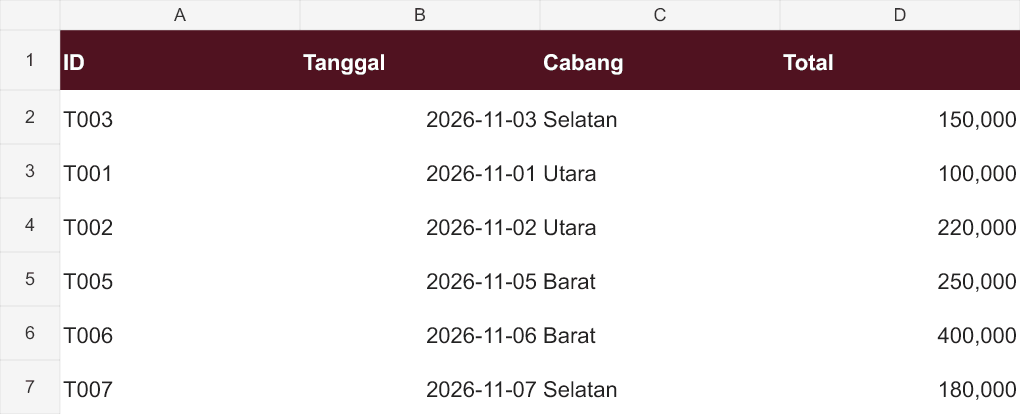
| Change | Amount |
|---|---|
| T002 | IDR 200,000 becomes IDR 220,000 |
| T004 | Missing from the new report, IDR 300,000 |
| T007 | New transaction, IDR 180,000 |
| Old total | IDR 1,400,000 |
| New total | IDR 1,300,000 |
The reconciliation is IDR 1,400,000 + 20,000 − 300,000 + 180,000 = 1,300,000. Equal row counts do not establish that reports contain the same information.
Check other fields separately
The exercise checks presence and Total. If branch, status, or date also matters, compare those fields separately. Do not label records “identical” after checking only their amounts.
For multi-branch reporting, see combining Excel files with explicit duplicate rules. If you need to repeat this comparison daily, we can map a repeatable reconciliation workflow.
Cover photo: Anthony Choren on Unsplash, used under the Unsplash License. This is an illustrative stock photo, not documentation of the incident, featured product, or a test result.
Is your team still doing something by hand?
Tell me about it, and let's find the fix together.
More notes

How to Back Up a Website in cPanel Before Updating PHP
Back up website files and databases in cPanel before a PHP update. Understand full and partial backups, off-server copies, and how to plan a website recovery.
Read the note
An AI Agent Accessed Systems Without Permission. How Does That Happen?
An AI incident in Australia raises questions about access and oversight. Learn how to set permissions, approve actions, keep logs, and stop a workplace agent.
Read the note