ChatGPT Cannot Read Your Excel File? Here Is What to Check
Troubleshoot Excel files in ChatGPT: failed uploads, missing attachments, overlooked sheets, and incorrect totals. Includes diagnostic prompts and a test file.
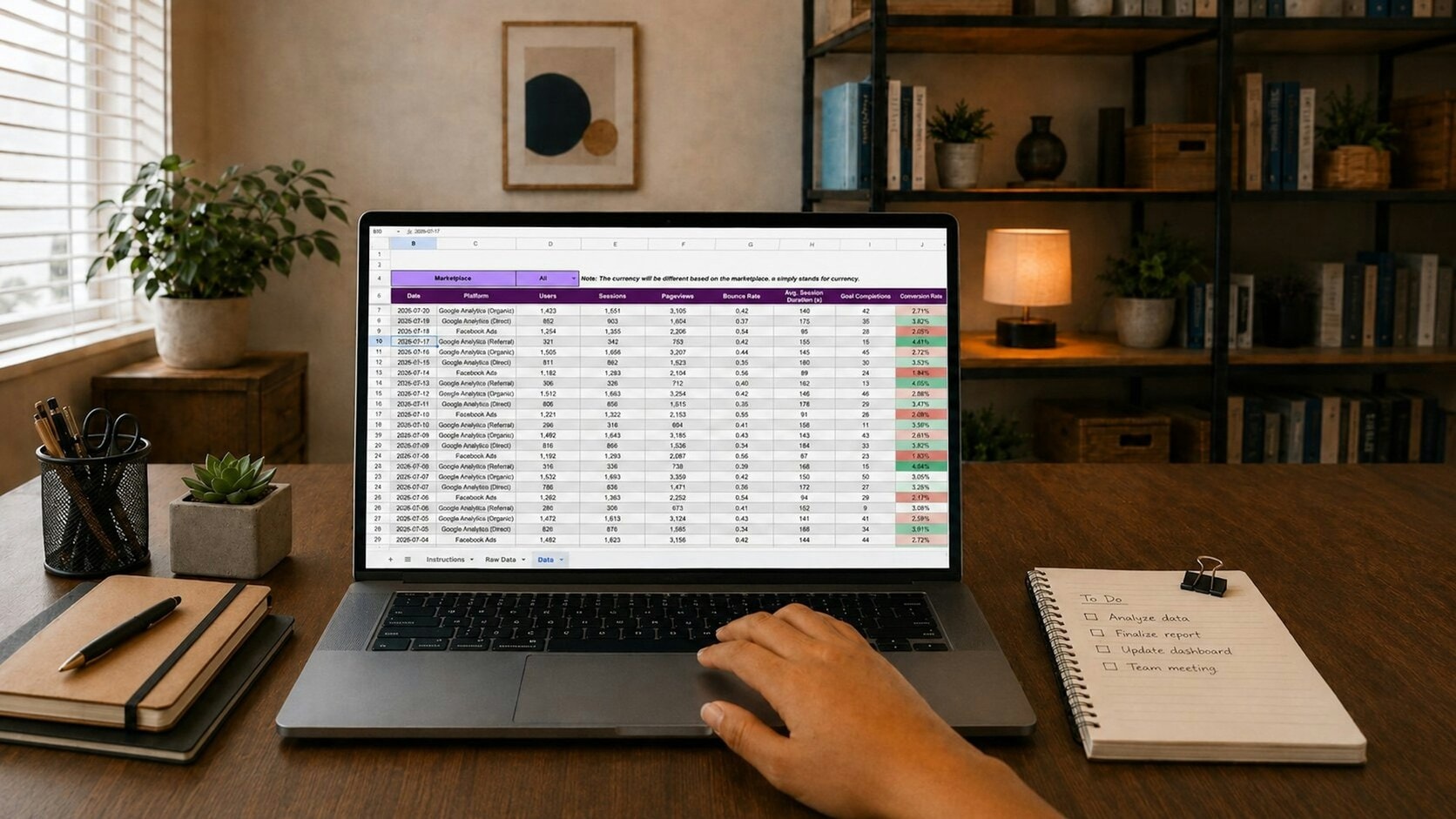
If ChatGPT cannot read an Excel file, first identify where the process fails. An incomplete upload, an attachment unavailable in the conversation, an overlooked sheet, and an incorrect calculation are four different problems. Repeating "please read it more carefully" may not address the cause.
OpenAI's official guide explains that spreadsheets can be attached for analysis, cleanup, or use as sources for a new file. The file still needs to be accessible, and the instructions need to be clear. Typing its location on your laptop does not attach its contents.
Identify the symptom first
| What you see | What to investigate | First step |
|---|---|---|
| An upload error or an upload that never completes | Upload process, account limits, connection, or service | Try one small sample file and record the message |
| The AI says no file is available | Attachments and conversation context | Ask which files it can actually access |
| The file opens but data is missing | Sheet names, table structure, and data range | Ask for every sheet name and its row count |
| The table is readable but totals differ | Number types, periods, filters, and calculation rules | Reconcile source rows with the calculated result |
| The data differs from your latest file | File version or copy in use | Upload the latest copy with a clear filename |
This table is a diagnostic aid. A symptom can have more than one cause, so start with the simplest check.
1. Confirm that the file is attached
Open the conversation where you want to process the file, attach it, and wait for the upload to finish. Then request a short check:
Before analyzing anything, list the files you can actually access in this
conversation. For each workbook, list the sheet names you can read.
If no file is available, say so. Do not infer its contents from the filename
or a previous conversation.
If the intended file is missing from that list, resolve access before asking for calculations. Attach the right file again or confirm that a connected application's file is accessible to the account in use.
Typing C:\Reports\sales.xlsx into a web chat sends a text path. Similarly, a Drive link requiring permission does not establish access to its contents. Use an appropriate upload or integration without making a work file public merely so an AI can read it.
2. Try a small file whose contents you know
If the main file fails, use a small workbook to distinguish access problems from content problems. You can use this four-transaction sample file. All its data is fictional.
Ask the AI to read the Penjualan sheet, report its row count, and sum Total. The reference values are four transactions and Rp500,000, in Indonesian Rupiah. Quantity should not be multiplied again because Total already contains the amount per transaction.

If the small file cannot be uploaded either, focus on the upload, account, or service. If it works while the main file does not, inspect the main workbook's size, format, protection, and structure. This narrows the investigation; it does not establish one definitive cause.
3. Check the format and table structure
Open the file in Excel first and confirm that Excel itself can read it. Renaming a file's extension to .xlsx does not convert its actual format.
A copy prepared for analysis is generally easier to inspect when it has:
- A single, clear header row, such as Date, Order ID, Branch, and Total.
- One transaction per row, without subtotal rows mixed into the detail.
- Dates and numbers stored as appropriate values, rather than all as text.
- No merged cells needed to express important data groupings.
- Sheet names and currency units specified in the instructions.
Remove protection or a password only if you are authorized, then prepare a copy according to company policy. Pasting a password into the conversation should not be your first response to an unreadable file.
Workbooks with macros, complex formulas, external connections, or many sheets also need instructions defining what can be used. Do not assume that attaching a workbook refreshes its data connections or runs its macros.
4. Specify the sheet and range
A workbook may be readable while the AI selects a summary sheet instead of the transaction sheet. It might also interpret a report title as the table header. Clarify the structure before requesting a lengthy analysis:
Use penjualan-utara.xlsx, sheet Penjualan.
Row 1 contains the headers. Rows 2 through 5 contain four transactions.

Show the column names, the number of data rows, and the Total value for each
transaction. Then sum Total without multiplying it by Qty.
If the workbook differs from this description, report the difference first.
Adjust the range for your real data. Do not copy this example's row numbers and assume every workbook has the same layout.
5. If the total is wrong, inspect the data rules
Opening a file successfully does not establish that it was analyzed correctly. Errors can arise when 1.500.000 is treated as text, a date such as 04/11/2026 is interpreted using a different locale, or subtotal rows are summed together with transaction detail.
Check whether the required revenue figure includes only paid transactions, whether returns reduce sales, and whether duplicates count once. A blank should not automatically become zero when it means data is unavailable.
Ask for a traceable explanation:
Explain this total from the source data. Specify:
- The sheet, range, and number of rows read.
- The column being summed and its unit.
- Any date or status filters used.
- How subtotals, blanks, returns, and duplicates were treated.
- Every excluded row and the reason for its exclusion.

Show sample source rows contributing to the total.
Do not change the data to force the result to match.
For a worked reconciliation, see the tutorial on combining three Excel files with ChatGPT Work. A duplicated transaction changes the raw total of Rp2,100,000 to Rp1,900,000 after checking.
6. If uploads still fail
Record the error text, time, file type, file size, and whether the small sample also fails. Check account limit notifications and OpenAI's service status. Limits and access can differ by plan and account settings; do not assume one quota applies to everyone.
If the problem occurs in only one browser, try a new conversation or another browser you use, and check whether an extension is interfering with uploads. Do not disable company security protections to force access. For a large report, prepare a copy containing the required period or columns while retaining the complete source.
Repeatedly uploading a file after a usage-limit notification is not a fix. Follow the reset time or instructions shown by the service. When contacting support, share a sanitized example instead of immediately sending an entire company report.
Once it is readable, check the result
The goal is to establish that the right file is readable, all relevant data is included, and the calculation rules match the job.
If you need an output workbook, OpenAI's file guide recommends opening the result and requesting specific revisions. Before bringing company information into an AI tool, see the guide to customer data.
If the same problem repeats every month because reports always need cleaning and combining, tell me about the workflow. Improving the source format or integration may save your team from repeating the same diagnosis.
Cover photo: Gorilla ROI Data Connector on Unsplash, used under the Unsplash License. The photo illustrates spreadsheet work. The workbook preview uses fictional data created for the tutorial.
Is your team still doing something by hand?
Tell me about it, and let's find the fix together.
More notes

How to Back Up a Website in cPanel Before Updating PHP
Back up website files and databases in cPanel before a PHP update. Understand full and partial backups, off-server copies, and how to plan a website recovery.
Read the note
How to Compare Two Excel Files and Find Changed or Missing Records
Compare two Excel reports by ID to find added, missing, and changed transactions. Includes sample files, practical formulas, and a reconciliation of the totals.
Read the note