How to Convert PDF to Excel Without Breaking Columns and Numbers
Convert PDF tables to Excel with Power Query, distinguish scans from text PDFs, and reconcile rows and totals. Includes fictional examples and a reference file.

To convert PDF to Excel reliably, identify the PDF type, extract the table, and check data types and totals. A table that looks correct may still contain values that cannot be calculated.
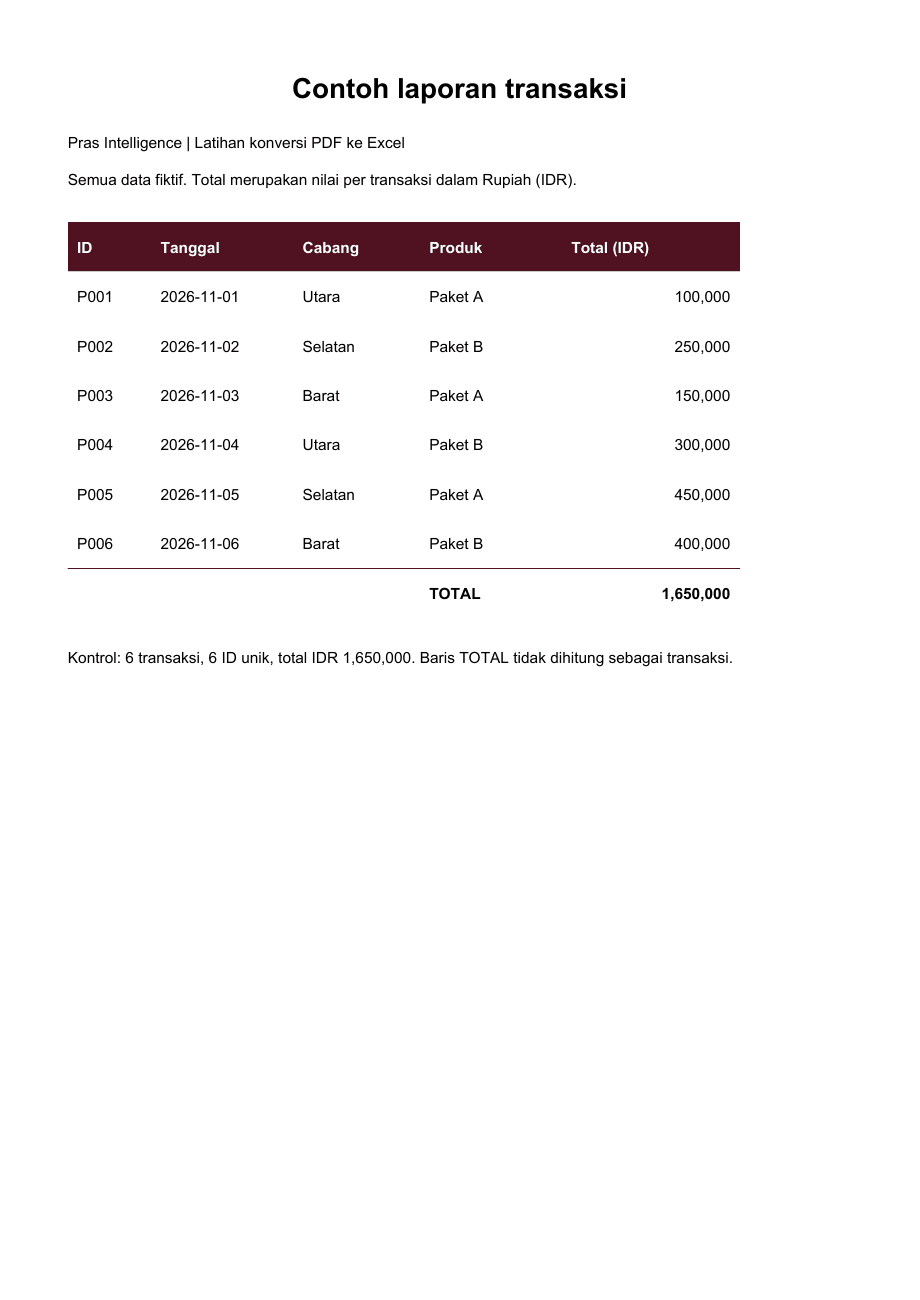
This tutorial uses six fictional transactions. Download the sample PDF and reference workbook. The workbook was created from the same source data; it does not demonstrate that every converter produces identical output.
Distinguish text PDFs from scans
Try selecting an order ID in your PDF reader. If it copies correctly as text, begin with table import. If the page is an image, you need OCR, or optical character recognition. Review its output, especially characters such as zero and the letter O.
A document may contain both types. Check several pages rather than only the first. Before uploading real customer documents, confirm that the conversion tool meets your organization's data handling requirements.
Import with Power Query
These steps target desktop Excel on Windows with the PDF connector available. Menus vary by version and plan. If From PDF is missing, check your version against Microsoft's import guide.
- Open a blank workbook and choose Data → Get Data → From File → From PDF.
- Select the sample PDF and review the detected tables in Navigator.
- Select the six-transaction table, then choose Transform Data to inspect it before loading.
- Retain one header and six transaction rows. Exclude TOTAL so the aggregate is not counted twice.
- Set ID to text, Tanggal to date, and Total to a numeric type. Finish with Close & Load.
The PDF connector documentation covers table selection and extraction limitations. Complex layouts can require additional cleanup.
Check number separators and dates
The example uses 100,000 for one hundred thousand. Do not automatically interpret that comma as a decimal separator. If the Power Query locale differs from the source, use a locale-aware type conversion and check the resulting value.
The sample uses year-month-day dates. In other documents, 03/04/2026 could mean March 4 or April 3. Establish the source convention before converting.
Reconcile three controls
| Check | Expected result |
|---|---|
| Transactions, excluding header and TOTAL | 6 |
| Unique IDs | P001 through P006 |
| Transaction total | IDR 1,650,000 |
Also check P002 at IDR 250,000 and P005 at IDR 450,000. Row-level spot checks can reveal mistakes that a grand total alone misses.
In the reference workbook, SUM(E2:E7) produces the total. Do not include the total row in that range. If summing fails, check whether imported amounts remain text.
If the table breaks apart
Return to transformation and identify patterns: repeated headers, descriptions split across rows, or separate tables for each page. Retain the source PDF so corrections remain traceable. Unrecorded cell-by-cell repair makes next month's conversion difficult to repeat.
AI can suggest column mappings, but you still need to reconcile the controls. My guide to Excel files AI cannot read explains how to distinguish access problems from interpretation errors.
For recurring PDF reports, tell me about the source layout and required output. That determines whether a saved query is sufficient or an automated conversion workflow is useful.
Cover photo: Jakub Żerdzicki on Unsplash, used under the Unsplash License. This is an illustrative stock photo, not documentation of the incident, featured product, or a test result.
Is your team still doing something by hand?
Tell me about it, and let's find the fix together.
More notes

How to Back Up a Website in cPanel Before Updating PHP
Back up website files and databases in cPanel before a PHP update. Understand full and partial backups, off-server copies, and how to plan a website recovery.
Read the note
How to Compare Two Excel Files and Find Changed or Missing Records
Compare two Excel reports by ID to find added, missing, and changed transactions. Includes sample files, practical formulas, and a reconciliation of the totals.
Read the note